Showing posts with label Iphone. Show all posts

Thursday, 19 December 2013

Android based ioPhone rips off iPhone 5c wholesale

ioPhone (image 001)
You’d be forgiven for mistaking the ioPhone for Apple’s iPhone 5c. This Android-based knock-off handset features the same plastic shell as Apple’s device and is available in the same five bright colors: yellow, red, green, blue and white. Made by Japanese manufacturer Iosys, ioPhone is almost an exact replica of Apple’s handset, down to the curvature, the physical buttons and other detail.
The handset will go on sale in Japan tomorrow and we have the weirdest promotional video ever for your viewing pleasure, right after the break…
Check out the video.
That’s a catchy upbeat tune!
The ioPhone runs Android 4.2 and packs in a rather pedestrian 254ppi 480-by-854 pixel resolution display and a two-megapixel camera. It’s powered by a dual-core Mediatek chip with 512MB of RAM and has 4GB of built-in flash storage, as reported by CNET.
Hey, what did you expect for 15,490 yen (around $150)?
By comparison, the iPhone 5c has a 640-by-1,136 pixel resolution Retina display, an eight-megapixel iSight camera, at least 16GB of onboard storage and runs Apple’s dual-core A6 chip with 1GB of RAM.
ioPhone dimensions: 61.8×9×127.5mm versus 59.2×8.97×124.4 for Apple’s device.
I wasn’t aware Japanese do knock-off products.
It’s probably made in China, anyway…

Monday, 16 December 2013

Philips Hue App Receives iOS 7-inspired Makeover, Sidebar Navigation And More

The Philips Hue app for iOS has been offered a handsome update today that not only brings that modern, flat aesthetic to the fold, but adds a plethora of other new features besides. We’ve got all of the details in one place for you below.

For those uninitiated, Philips’ range of Hue bulbs allow a user to control various aspects including color and brightness, and although they are expensive for what is essentially a luxury product, they have proven rather popular among many iOS users.

Philips Hue iOS

The Hue bulbs are somewhat smart in that you can control so much thanks to the companion Hue app, and today, said app has been updated with iOS 7 support. If you’re a Hue user and have been waiting for the app’s appearance to become more in-keeping with the Cupertino company’s newish mobile OS, then the wait is finally over, and rather than just flattening out the interface, Philips has also thrown in one or two other goodies.

screen568x568

For a start, v1.2 brings a useful set-up demonstration, allowing you to quickly and easily familiarize yourself with Philips Hue if you’re just getting started.

My personal favorite addition to the fold with the new update, however, is the fact that you can now save a status of your lights as a preset, so if you wish to to revert at any point in the future, you can do so via light control.

screen480x480

Finally, allied to everything else, there’s a handy new sidebar menu, which makes navigation just that little bit easier. Version 1.2 also offers sidebar notifications to boot, so in actuality, this is perhaps the biggest update we’ve seen to the Philips Hue app since the product was first introduced.
Although Hue, and products like them, are not necessarily revolutionary (or even necessary, for that matter), they do provide great examples of what can now be achieved using smartphones and apps. With this in mind, if you do ever get the opportunity to try out Philips Hue, it’s definitely worth it.
We highly recommend updating to the latest version, and for your convenience we’ve linked to the app below.

(Download: Philips Hue for iPhone on App Store)

Philips Hue updated for iOS 7, adds new features

Philips Hue 1.2 for iOS (iPhone screenshot 001)Philips Hue 1.2 for iOS (iPhone screenshot 002)
Philips Hue, the pricey iPhone-controlled personal wireless lighting system, has captured Jeff’s imagination with its ability to control lighting when away from the house, turn on lights when pulling into the driveway, set timers to adjust lighting at certain periods during the day, etc.
The companion Hue app, a free download from the App Store, allows you to easily control your Hue lighting through your iPhone with just a few setup steps.
The software was originally designed around a non-standard interface and today got refreshed for the iOS 7 look and feel while adding sidebar navigation, introduction demo and a few other nice-to-haves…
Version 1.2 finally brings the app in line with the overall iOS 7 aesthetics.
Philips Hue 1.2 lets you save the current status of lights as a scene from light control, reorder lights from in-app settings and navigate using the new sidebar menu with support for sidebar notifications.
There’s also built-in introductory demo.
Philips Hue 1.2 for iOS (iPhone screenshot 004)Philips Hue 1.2 for iOS (iPhone screenshot 003)
Here’s Hue 1.2 changelog:
• new iOS 7 style design
• added sidebar navigation to make functionality easier to find
• added introduction demo
• lights can now be reordered from the app settings
• save current status of lights as a scene from light control
• added sidebar notifications
Since releasing Hue in October 2012, Philips has opened up the smart light bulb to third-party app makers via an API (IFTTT supports it, for example) and has expanded the family with the two-meter LightStrips and Bloom, a portable lamp with a 120 lumen LED bulb.
They also announced the tweaked BR30 variant which fits into recessed sockets to create the effect of light shining from a hole in the ceiling.
The 27.2MB download runs natively on iPhone/iPod touch devices with iOS 6 or later.

    Apple may have fixed exploits used for iOS 7 Jailbreak in iOS 7.1

    Over the weekend, pod2g, a key member of the evad3rs dismissed rumors that the iOS 7 jailbreak was stolen.
    As for the progress on the iOS 7 jailbreak, pod2g said that “the jailbreak stuff is moving on, but slowly.”
    However, if you’re waiting for the iOS 7.x jailbreak then you may want to avoid upgrading to iOS 7.1.
    iH8sn0w, developer of popular jailbreak tools such as Sn0wbreeze has tweeted that the iOS 7.1 beta patches “the mobilebackup2 exploit to write to /var via the MediaDomain symlink” when he was asked if it was safe to upgrade to iOS 7.1. 
    We’re not sure if this is a major setback for jailbreakers. reddit user phonenixdev explains:
    Mobilebackup2 is the system used to generate your user backups, as well as place them back on the phone. But it’s designed for only particular folders in the user directory.
    It has been used in years past via path walking (prepending ..’s to walk up the directory tree) to let us put files in other places in the /var partition. I’m guessing that they found they could do something similar by creating symlinks to other places on the /var partition.
    Actually, I’m not guessing. I know you could do that because a failbreak I once made used that. :P
    P.S. root partition = where the OS is installed; mounted at the base of the filesystem ( / ). /var partition = where the user data is; mounted at /var. When you update your phone, the root partition is overwritten while the var partition stays around. When you restore your phone, both partitions are wiped.
    Stefan Esser, aka i0n1c, believes that Apple has fixed some vulnerabilities that was being used for the iOS 7 jailbreak.
    But that is just speculation at this stage as it is not clear if the exploit was being used by evad3rs to develop the iOS 7 jailbreak, so we will have to wait for them to confirm it.
    But if you have been waiting for a jailbreak for iOS 7.x, then you should avoid upgrading to iOS 7.1 when it is released or even iOS 7.1 betas that has been released to developers.
    If Apple has indeed fixed the vulnerabilities that was used in the in-progress iOS 7 jailbreak then it would mean that evad3rs will first have to release a jailbreak for iOS 7 to iOS 7.0.4. We thought that evad3rs may hold off releasing the jailbreak until iOS 7.1 is released, but if it does fix the vulnerabilities that is ruled out, unless they find another exploit to jailbreak iOS 7.1.

    10 Great Minimalist Superhero Wallpapers for your iPhone

    Bored of the current wallpaper on your iPhone? We have some great minimalist superhero wallpapers for you.
    To set these images as your wallpaper, download the image by opening the direct links on your device, and save the image to your library. Then navigate to Settings > Wallpapers & Brightness to select the image you saved.

    Superman:


    superman

                                                                                            (Download link)
    Iron Man
    iron man
    Spiderman
    spider man
    Batman
    batman
    Flash
    flash
    You might have noticed that these wallpapers don’t match the iPhone’s 640×1136, so here are similar wallpapers with the exact resolution as the iPhone 5s, iPhone 5c, iPhone 5:
    Captain America:
    america
    Batman:
    batman
    Flash:
    flash
    Spiderman:
    spider-man
    Superman
    superman

    Gist intelligently summarizes your news articles

    Many people turn to their iOS devices as a way to catch up on news and consume reading materials, keeping updated with daily happenings. Other than Twitter, there are few options to instantly give a short synopsis of a story or news blurb.
    Personally, I use Flipboard, but even it utilizes the entire article. If you are pressed for time or only want the key points of an otherwise much larger article, a new app called Gist is aiming to provide only the quick details of news articles…To play on the pun, Gist.app only provides users the “gist” of an article, news story, or post. According to the developer, Gist uses an algorithm to intelligently summarize most articles into approximately five bullet points. When tapping into a specific article, the app takes a moment to summarize the article into succinct points.
    Populating the reader’s list are different pre-selected news sources in particular categories. Categories include top stories, world news, US news, technology, sports, business, spotlight, entertainment, health, and science. Within each section, different news sources are determined by the app. In the technology category, for example, sources include Computerworld, Latin Post, Apple Insider, Digital Trends, TechSpot, and Information Week.
    In a clear and concise user interface, Gist provides the key points of an article. If a news topic or source is not listed in the app, users can copy and paste the URL for their intended article into Gist for a summary. However, copy/pasting a URL into the app defeats the simplicity of the transaction. If Gist is going to be an option for power users, there must be a way to add individual sources.
    Below is a screenshot of an article about Nelson Mandela from the BBC. As promised, the article is broken into five key bullets. Whether the bullets are actually the most important is for each user to determine, but for comparison’s sake, the full article is available through the BBC website. The article is of considerable length, for only give bullets to accurately capture the story. To view the full site from Gist, simply tap the Full Article button below the summary. If reading isn’t preferred, the app will also read the summaries and at a user defined speed.

    Gist screenshot

    Gist allows users to quickly add articles to Safari.app’s built-in reading list for offline viewing, which is convenient. However, linking with other services like Pocket or Instapaper would provide a more robust offering, especially considering Gist is not a free app.

    Conclusion


    Gist is a great app for users looking for quick and dirty news information from a variety of sources. The topics offered are varied and offer information for most news categories. These options will please the general readership, but potentially leave more detail oriented readers at a loss.
    Where Gist leaves me wanting is the ability to customize news locations. It is a great benefit to have long news articles condensed automatically into small snippets. However, if those are not news stories from the sources I personally choose, it is not an app for me personally. I look for Gist to continue growing with popularity. There is a lot of potential with this app, especially for those on-the-go readers with little time to consume an entire article.

    Tips For Saving Battery Life On iOS 7

    OS 7 brings a fresh new look along with a ton of new features to Apple’s famous range of mobile devices. In this post, we’ll guide you through a bunch of options in iOS 7 that you can turn off if you don’t need them in order to save battery on your iPhone, iPad or iPod touch.


    Location Services

    Photo Sep 28, 3 00 57 AM

    Location Services in iOS 7, or any iteration of iOS for that matter, is a real battery hog. If your main apps don’t make use of this feature, you can turn it off. Head over to Settings > General > Privacy and turn off Location Services altogether, or set individual setting for each app.

    Also, under the Location Services pane, scroll down to System Services and turn off Diagnostics & Usage, Location-Based iAds, Popular Near Me, Setting Time Zone, Traffic and Frequent Locations.

    Disable Siri

    Photo Sep 28, 3 01 04 AM

    Siri is a core part of iOS and runs in the background all the time. If you’re not using it then it’s best to turn it off. Head over to Settings > General > Siri and turn it off.

    Turn off Bluetooth Or Wi-Fi

    Photo Sep 28, 3 01 17 AM
    Disable Bluetooth when not in use, it will save you loads of precious juice. You can disable it by heading over to Settings > Bluetooth.

    Wi-Fi is a blessing, but at times we forget to turn it off when we’re not near a Wi-Fi hotspot. Turn it off by heading over to Settings > Wi-Fi when not in use.

    Use 2G Whenever Possible

    Photo Sep 28, 3 01 26 AM

    Using iPhone on 3G or 4G LTE network drains battery like anything. Those mind blowing cellular speeds are great for pretty much everything that requires cellular data, but idle usage gives a big hit to battery. Head over to Settings > Cellular and set Enable 3G/4G to off.

    Disable Some Settings In Notification Center

    Photo Sep 28, 3 01 47 AM

    Every time you pull down that shiny new Notification Center in iOS 7, it uses cellular data to keep you up to date on latest weather, stocks and your daily summary. Head over to Settings > Notification Center and switch off the settings which seem irrelevant to you.

    Turn Off Background App Refresh

    Photo Sep 28, 3 01 56 AM

    This is a killer new feature in iOS 7, but devastates battery life on the device like anything. Navigate to Settings > General > Background App Refresh and disable it. You also have the option to update your favorite apps’ content in the background individually, therefore disable or enable the feature for each app wisely. It’s good practice to keep as minimum apps as possible on auto refresh.

    Turn Off Parallax

    Photo Sep 28, 3 15 18 AM

    Parallax effect on the home screen or lock screen constantly keeps the motion sensors up and running on the device, which ultimately results in battery drainage. Head over to Settings > General > Accessibility > Reduce Motion and set it to on.

    Set Automatic Date / Time Update To Off

    Photo Sep 28, 3 02 14 AM

    This uses the device’s location services from time to time to adjust the device’s date and time. To disable it, head over to Settings > General > Data & Time and turn off Set Automatically.

    Disable Push Mail / Push Notifications

    Photo Sep 28, 3 02 42 AM

    Push notifications are great and all, but they take toll on battery life. Head over to Settings > Notification Center and remove all unnecessary apps which send you push notifications. Only leave those in Notification Center which are most important to you.

    Push mail is also a big culprit here, if you don’t have enough incoming mails then it’s best to turn push notifications for email(s) to off. Head on over to Settings > Mail, Contacts, Calendars > Fetch New Data and turn Push off. You can set it to manually retrieve mail, or set to check mail at fixed intervals. The larger the interval, the better the battery life you’ll get out from your device.

    Turn Off iCloud Features

    Photo Sep 28, 3 15 35 AM

    iCloud features gives the luxury of keeping things in sync across multiple devices, but comes at a small cost of power. Head over to Settings > iCloud and turn off the features which you don’t use.

    Make Use Of Auto-Brightness

    Photo Sep 28, 3 15 43 AM
    Instead of setting the screen brightness to high manually, set the device’s auto-brightness to on. You can do so by heading over to Settings > Wallpapers & Brightness and turn Auto-Brightness to on. Note: fifth-generation iPod touch does not come with the auto-brightness feature, therefore you have to adjust brightness manually. It’s best to do so from Control Center, which can be accessed by swiping up from the bottom of the device’s display.

    Kill Background Apps

    Photo Sep 28, 3 03 04 AM

    iOS is really smart on its own when it comes to adjusting power, but there are some apps that when running in the background execute processes that use up cellular data to take up a fair share of battery juice. Double tap the Home button to bring up the multitasking menu and close all the apps which you don’t use.

    Disable Advertising Tracking

    Photo Sep 28, 3 03 30 AM

    Head over to Settings > Privacy > Advertising and turn on Limit Ad Tracking.

    Turn Off Diagnostics & Usage Reporting

    Photo Sep 28, 3 03 46 AM

    Turn this feature off, just do it. Head over to Settings > General > About > Diagnostics & Usageand select Don’t Send.

    Make Use Of Control Center As Much As Possible

    Photo Sep 28, 3 14 26 AM

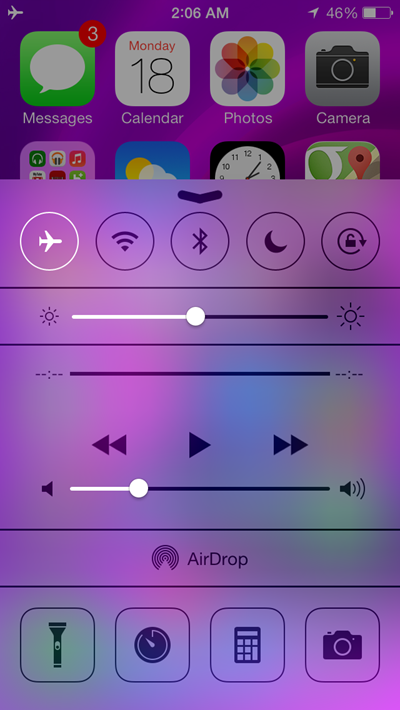
    Control Center gives you a quick glance of the radios – or settings – that are enabled or disabled on the device. Simply swipe up from the bottom of the display from anywhere in iOS 7 to access Control Center and disable all the radios or features which are not in use at the given time.

    Disable Device Orientation Settings

    Photo Sep 28, 3 05 02 AM

    Constant use of the device’s accelerometer can put a small strain on battery life. Bring up Control Center, and turn on Orientation Lock, which is the icon on the far right in the top row, right next to Do Not Disturb.

    Disable Recurring Message Notifications

    Photo Sep 28, 3 04 06 AM

    By default, iOS will show you the same notification from the Messages app twice if you don’t respond to it the first time. Double notification alerts mean that your device’s display will turn on multiple times, which ultimately leads to battery drain. Head over to Settings > Notification Center, find Messages in the INCLUDE section, tap on Messages, scroll down and tap on Repeat Alerts and set it to Never.

    Disable iMessage / FaceTime

    Photo Sep 28, 3 16 20 AM

    If you don’t use iMessage or FaceTime at all, then it’s best to turn it off. Head on over toSettings > Messages and turn off iMessage, or Settings > FaceTime and disable FaceTime.

    Make Good Use Of ‘Do Not Disturb’

    Photo Sep 28, 3 04 17 AM

    Do Not Disturb in iOS disables all sorts of incoming notifications, and spares a precious amount of power to get you through the day. Make use of it when you’re at work, in a meeting, during sleep, gym etc.
    Do Not Disturb can be accessed via Settings > Do Not Disturb, or via Control Center.

    Turn Off Device Vibration

    Photo Sep 28, 3 04 27 AM

    Keep your device’s vibration alerts off whenever possible, unless you’re in a noisy environment. Head over to Settings > Sounds and disable Vibrate on Ring and Vibrate on Silentboth.

    Turn Off Keyboard And Device Lock / Unlock Sounds

    Photo Sep 28, 3 04 31 AM
    The monumental iOS keyboard click and device lock / unlock sounds drains the battery continuously. Turn them off by heading over to Settings > Sounds and turn off Lock Sounds andKeyboard Clicks located at the very bottom of the page.

    Turn Off Automatic App Store Updates / Download Of Songs

    Photo Sep 28, 3 04 45 AM
    Automatic App Store updates ship as part of iOS 7, and is a really handy feature, if you ignore the part that it constantly strains your device’s battery and cellular or Wi-Fi connection to actually go for the update itself. Disable this feature by heading over to Settings > iTunes & App Store and disable Music, Apps, Books and Updates under the AUTOMATIC DOWNLOADS section.
    Also turn off Use Cellular Data to prevent the App Store and iTunes Store from doing its magic while you’re on a cellular network.

    Disable AirDrop When Not In Use

    Photo Sep 28, 3 05 00 AM
    Keeping things disabled when not in use is good practice, and the same goes for AirDrop. Swipe up to bring Control Center, tap on AirDrop and then tap Off.

    Turn Off Music EQ Settings

    Photo Sep 28, 3 16 33 AM


    EQ settings in the Music section of the Settings app is great for the ears if you’re into music, but bad for battery life for extended periods of usage. Turn it off.

    Turn Off iTunes Match

    Photo Sep 28, 3 05 10 AM

    Head over to Settings > iTunes & App Store and disable iTunes Match if you don’t make use of the service.

    Disable Cellular Data Connection In Bad Coverage Areas

    Photo Sep 28, 3 16 46 AM

    It’s always a good idea to disable the device’s cellular data connection in bad coverage areas where the cellular network is shady, especially inside skyscrapers or shopping malls. In fact, this tip will save you a ton of battery life if executed wisely and at the right time. Go to Settings > Cellular and disable Cellular Data. Keep in mind: when cellular data is disabled, you won’t have access to the Internet, which means you won’t get push notifications, emails, iMessages, FaceTime calls etc.

    Use Airplane Mode Wisely

    Photo Sep 28, 3 05 21 AM

    Proper usage of Airplane Mode will spare you up to a few hours of battery life, provided that you enable it or disable it at the right time. In a plane? Enable it. At home? Disable it. Bad coverage area? Enable it.

    Turn Your Device Off If All Else Fails

    End of the line? Seeing that 5% battery left mark on the top right hand corner? Well, if you’re in no emergency then it’s best you turn the device off until you find a power outlet.

    overview_features

    How To Charge iPhone, Android Or iPad Battery Faster

    It’s a problem that we’ve all been sufferers of but that doesn’t make it any less irritating. You’re on your way out the door in a terrifyingly short time but your phone or tablet could do with a little more juice battery before that door slams shut. The problem is none of our devices charge as quickly as we’d like, and battery technology shows no sign of fixing that problem any time soon.

    Of course, if you find yourself in desperate need of a little more power on a truncated timescale then there are a couple of things that you can do to try and eek a little more power out of even the shortest periods of charging. It might not fully charge that power hungry phablet you’re toting around, but it’ll give it handy bump at least.

    First, a little back story.

    Each smartphone we take on our travels with us – and tablets to a lesser extent – comes with a variety of sensors and radios. WiFi, cellular, 3G and LTE on top of that, GPS, NFC and all manner of other acronyms that we can’t remember off the top of our heads. There’s a lot going on inside that little package, and it all needs powering.

    So, and by now this probably isn’t going to come as much of a surprise, turning all those radios off can have a dramatic affect on power usage. That also means that if you turn them all off at the same time as trying to cram more power into a device’s battery, it should charge faster. In fact, it could theoretically even charge as much as 50% faster than with them off.

    What this rather lengthy preamble leaves us with is an indisputable fact: turning Airplane Mode on can make your phone or tablet, be it an iPhone, iPad, Android or a Windows Phone smartphone, charge considerably faster than with it turned off, which is great news in a pinch.

    photo (5)

    And anything that makes us be tethered to a wall outlet for a shorter time is a win in our books.


    © 2013 Tech News Reader. All rights resevered. Designed by Templateism

    Back To Top